
Managing the invites you send to users
This is for Account Owners only
See the related article about how to invite team members.
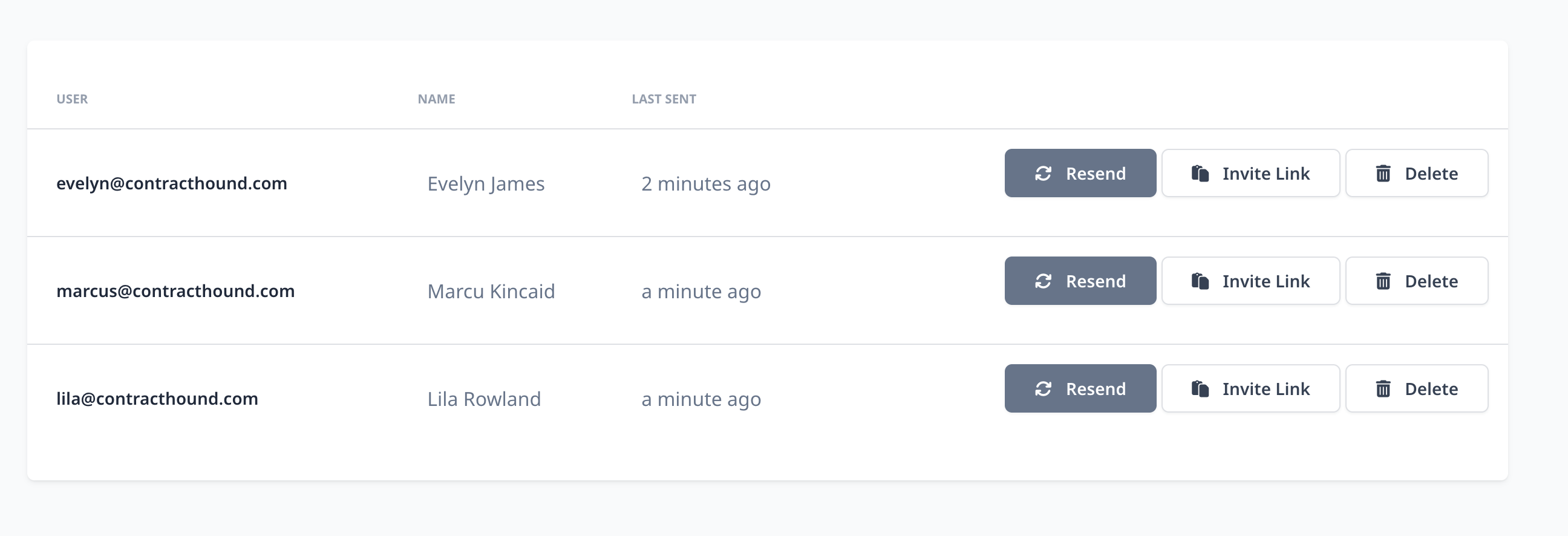
Once you invite a team member, you can now go to Admin > Users and click the Manage Invites button in the top right to see the invitations already sent from your account

On the next page you will see a list of users and when their invitations have been sent.
Resending an Invitation
If you'd like to resend an invite to a user, click the Resend button. This will immediately send another invite to the email account associated with that user.
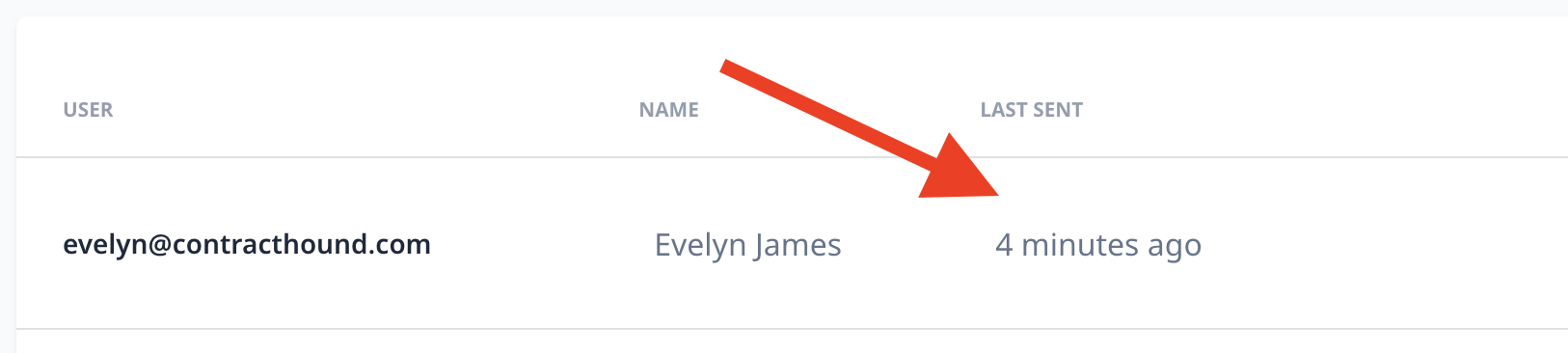
Please note that we only allow resending an invitation if one hasn't been sent in the last hour. You can see when the invitation was sent in the Last Sent column.
Getting the invite link
If for some reason, the user is not able to access or retrieve the email, you can get the invite link that is contained in the email and send to them:
Click the Invite Link button, which will copy the link to your computer clipboard. You'll see a little message pop-up confirming the link has been copied.
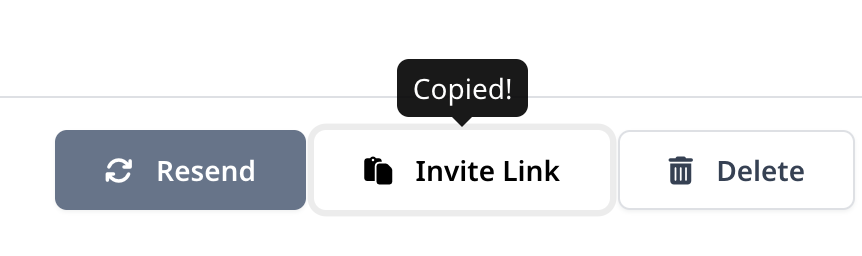
Now, go in to any application on your computer, right click, click Paste and the link will be inserted.
Deleting an invitation
Click the Delete button to remove an invitation. The system will prompt you that you wish to delete it before it takes any action.
Can I edit invitations?
You cannot edit invitations. Delete the invite and recreate to change any of the invite settings
My users have not received an invitation
- First, ask your users to check their Spam or Junk folders
- If that doesn't work try resending the invitation using the instructions in the Resending an Invitation section above
- Lastly, if that doesn't work, get the invitation link using the instructions in the Getting the Invite section above. You can then paste that link in to an email or give it to them another way